Guía · Artículo 04 Guide · Article 04
Entiende tus incidencias y su impactoUnderstand your issues and their impact
Cuando termina un rastreo, APEspider convierte lo que encuentra en incidencias. Aquí ves qué son, cómo filtrarlas y —lo más importante— cómo saber cuáles importan de verdad (por tráfico real, no por un número inventado).
1. Abre tus incidencias
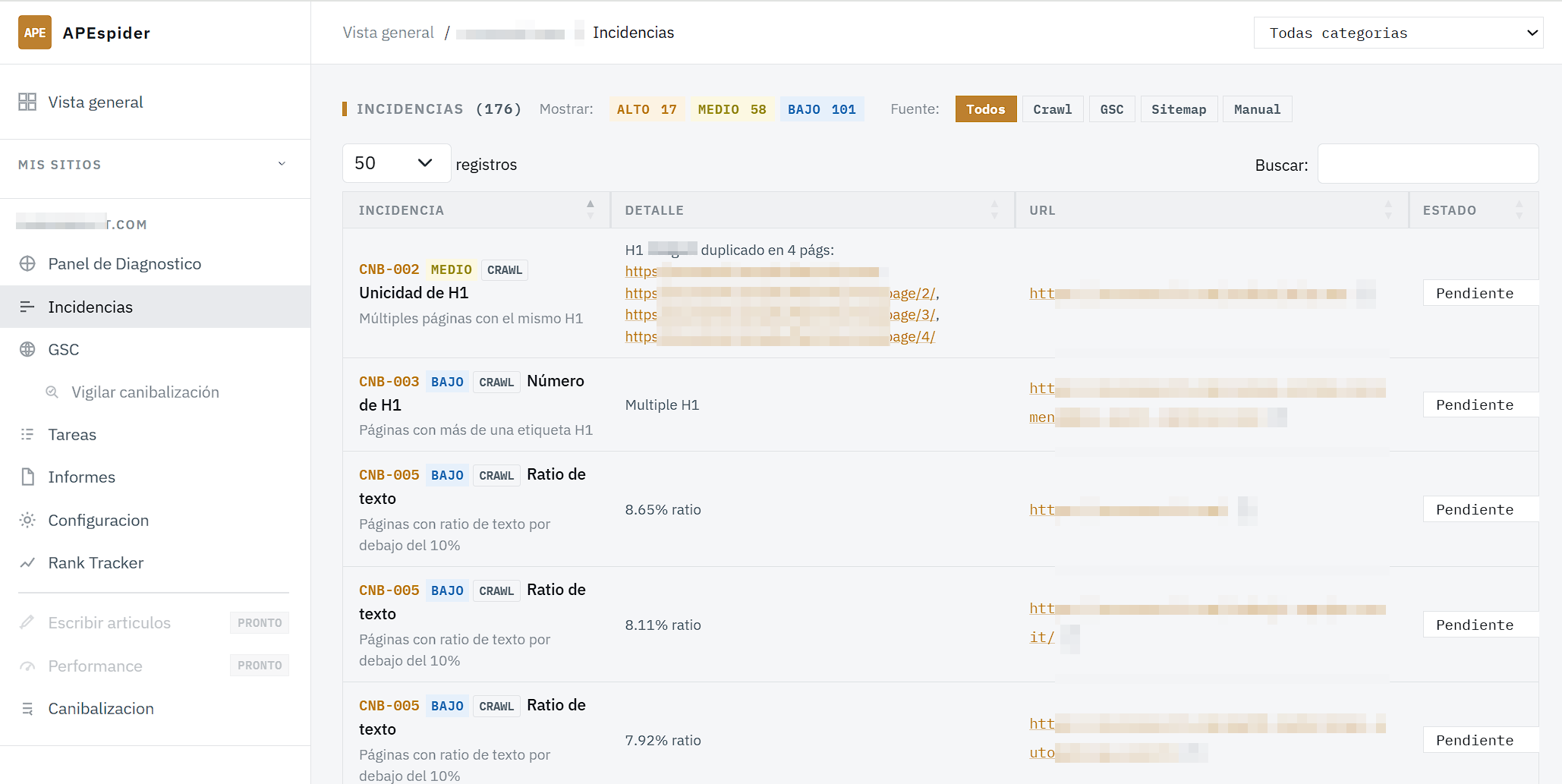
En el menú lateral del sitio, pulsa Incidencias. Verás la lista con un contador (N) al lado.
Cada fila reúne, en la columna Incidencia: el código de la detección (por ejemplo CRW-002), una etiqueta de severidad, un distintivo de fuente (Crawl, GSC, Sitemap o Manual) y el nombre y la descripción de la detección. La columna Detalle amplía la información (más / menos) y la columna URL enlaza la página afectada (con un botón Copiar URL).
2. Filtra para centrarte
- Severidad: junto a Mostrar: activas o desactivas CRÍTICO / ALTO / MEDIO / BAJO / INFO (cada botón trae su recuento).
- Fuente: junto a Fuente: eliges Todos, Crawl, GSC, Sitemap o Manual.
- Categoría: el desplegable Todas categorías filtra por área (Rastreabilidad, Indexabilidad, Títulos y meta descripciones, H1 y contenido, Hreflang, Imágenes, Datos estructurados, Rendimiento, Renderizado JavaScript, Issues personalizadas).
- Además puedes buscar y ordenar la tabla. Muestra hasta 1.000 filas; el contador
(N)refleja el total real aunque no se pinten todas.
3. Severidad no es lo mismo que impacto
- La severidad (Crítico, Alto…) es una etiqueta fija de cada detección: cuánta gravedad técnica tiene.
- El impacto es cuánto tráfico real toca. Para ordenar por impacto, APEspider usa tus clics de Google Search Console de los últimos 90 días.
4. Prioriza por tráfico real (Prioridades)
La vista Prioridades ordena tus incidencias sin resolver por los clics reales de GSC (90 días): primero lo que afecta a las URLs que te traen tráfico. Verás una frase honesta del tipo «Estos {n} issues afectan al {pct}% de tus clics de los últimos 90 días».
- Columnas: Issue, URLs, Clicks 90d, Impresiones 90d, y un desplegable Top {n} URLs afectadas.
- Sin GSC conectado no podemos ordenar por impacto: caemos a orden por severidad y verás un aviso para Conectar GSC.
- El enlace Ver guidance de cada fila abre la lista de Incidencias filtrada por ese código (no un artículo de la guía).
Qué hacer si algo falla: si un número aparece como —, el análisis aún no ha terminado —refresca en un minuto. Para saber cómo arreglar una incidencia concreta, ve a Tareas y abre su Guía SEO (lo cuenta el artículo «Arregla las incidencias»).
When a crawl finishes, APEspider turns what it finds into issues. Here's what they are, how to filter them, and —most importantly— how to know which ones truly matter (by real traffic, not an invented score).
1. Open your issues
In the site's side menu, click Issues. You'll see the list with an (N) counter next to it.
Each row packs, in the Issue column: the detection code (e.g. CRW-002), a severity tag, a source badge (Crawl, GSC, Sitemap, or Manual), and the detection's name and description. The Detail column expands the data (more / less) and the URL column links the affected page (with a Copy URL button).
2. Filter to focus
- Severity: next to Show:, toggle CRITICAL / HIGH / MEDIUM / LOW / INFO on or off (each button carries its count).
- Source: next to Source:, pick All, Crawl, GSC, Sitemap, or Manual.
- Category: the All categories dropdown filters by area (Crawlability, Indexability, Titles & Meta Descriptions, H1 & Body Content, Hreflang, Images, Structured Data, Performance, JavaScript Rendering, Custom Issues).
- You can also search and sort the table. It shows up to 1,000 rows; the
(N)counter reflects the real total even when not all are rendered.
3. Severity is not the same as impact
- Severity (Critical, High…) is a fixed attribute of each detection: how technically serious it is.
- Impact is how much real traffic it touches. To sort by impact, APEspider uses your Google Search Console clicks from the last 90 days.
4. Prioritize by real traffic (Priorities)
The Priorities view ranks your unresolved issues by real GSC clicks (90 days): whatever hits the URLs that bring you traffic comes first. You'll see an honest line like "These {n} issues affect {pct}% of your clicks from the last 90 days."
- Columns: Issue, URLs, 90d clicks, 90d impressions, and a Top {n} affected URLs expander.
- Without GSC connected we can't order by impact: we fall back to severity order and show a Connect GSC prompt.
- Each row's View guidance link opens the Issues list filtered to that code (not a guide article).
What to do if something's off: if a number shows as —, the analysis hasn't finished yet —refresh in a minute. To learn how to fix a specific issue, go to Tasks and open its SEO Guide (covered in "Fix your issues").